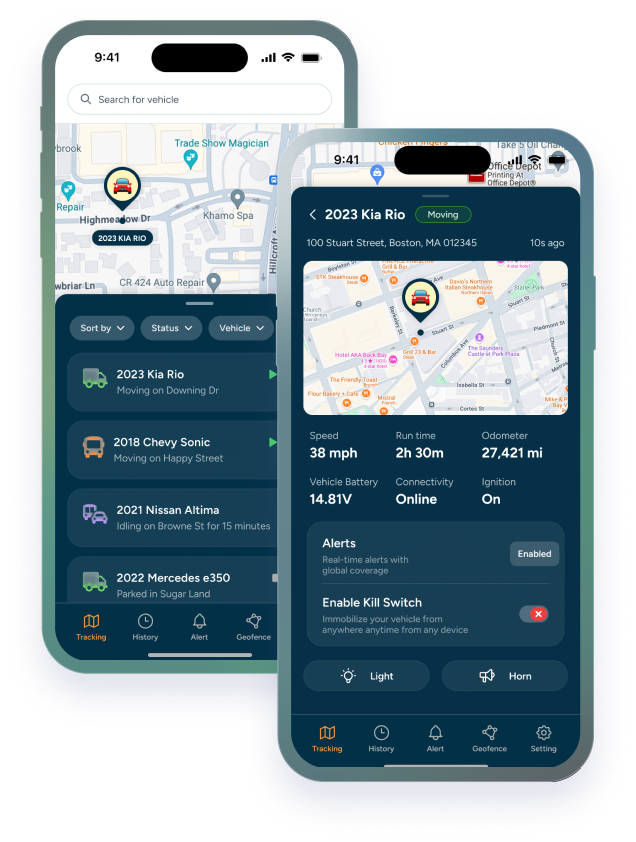

Good News! The Trackhawk GPS maintenance module is now live on web, with a companion mobile experience for viewing schedules and marking services complete on the go. This update covers everything you need to know about what changed, what moved, and how to use it day to day.
If you're just getting oriented with Trackhawk GPS tracking for the first time, or you've used it before and want to know what's new, this rundown covers it section by section: notifications, the mobile experience, marking service complete, a couple of fixes worth knowing about, and where to go if something looks off.
Maintenance notifications are now live on web
Trackhawk GPS maintenance notifications now surface directly on web, so due-soon and overdue services aren't something you have to go looking for; they show up as part of your normal workflow. Web fleet maintenance alerts are generated automatically based on the trigger you've set for each vehicle, whether that's mileage, engine hours, or time.
Maintenance due notifications appear both inside the maintenance module itself and on the individual vehicle's page, so you'll see a flag whether you're reviewing one vehicle or scanning the fleet as a whole. Nothing needs to be manually checked or refreshed — once a template is set up, the notification logic runs in the background.
Related: GPS Tracking Software Features
Mobile maintenance: what you can (and can't) do from your phone
Trackhawk mobile maintenance is intentionally a lighter version of the web experience, built for the moments you're standing next to the vehicle rather than sitting at a desk. From the fleet maintenance app, you can view upcoming and overdue schedules for any vehicle, and mark a service as complete once it's done.
What you can't do yet from mobile: build or edit maintenance templates, set up new triggers, or adjust cost tracking — those still live on web. Mobile fleet maintenance tracking is meant to keep you current in the field, not replace the planning work that happens back at the office. If you're setting up schedules for the first time, do that on web, then use the app to keep them updated from wherever the vehicle actually is.
Marking a service complete from the app, step by step
To mark service complete in the Trackhawk app, once a service is actually done:
1. Open the Maintenance tab from the bottom navigation.
2. Select the vehicle with the due or overdue service.
3. Tap the service item you completed.
4. Confirm the completion — you can adjust the date if the service happened on a different day than today.
5. Add a note if there's anything worth logging (parts used, mileage at service, shop name).
6. Save. The schedule automatically resets based on the vehicle's trigger, so the next due date is calculated from this completion, not the original schedule.
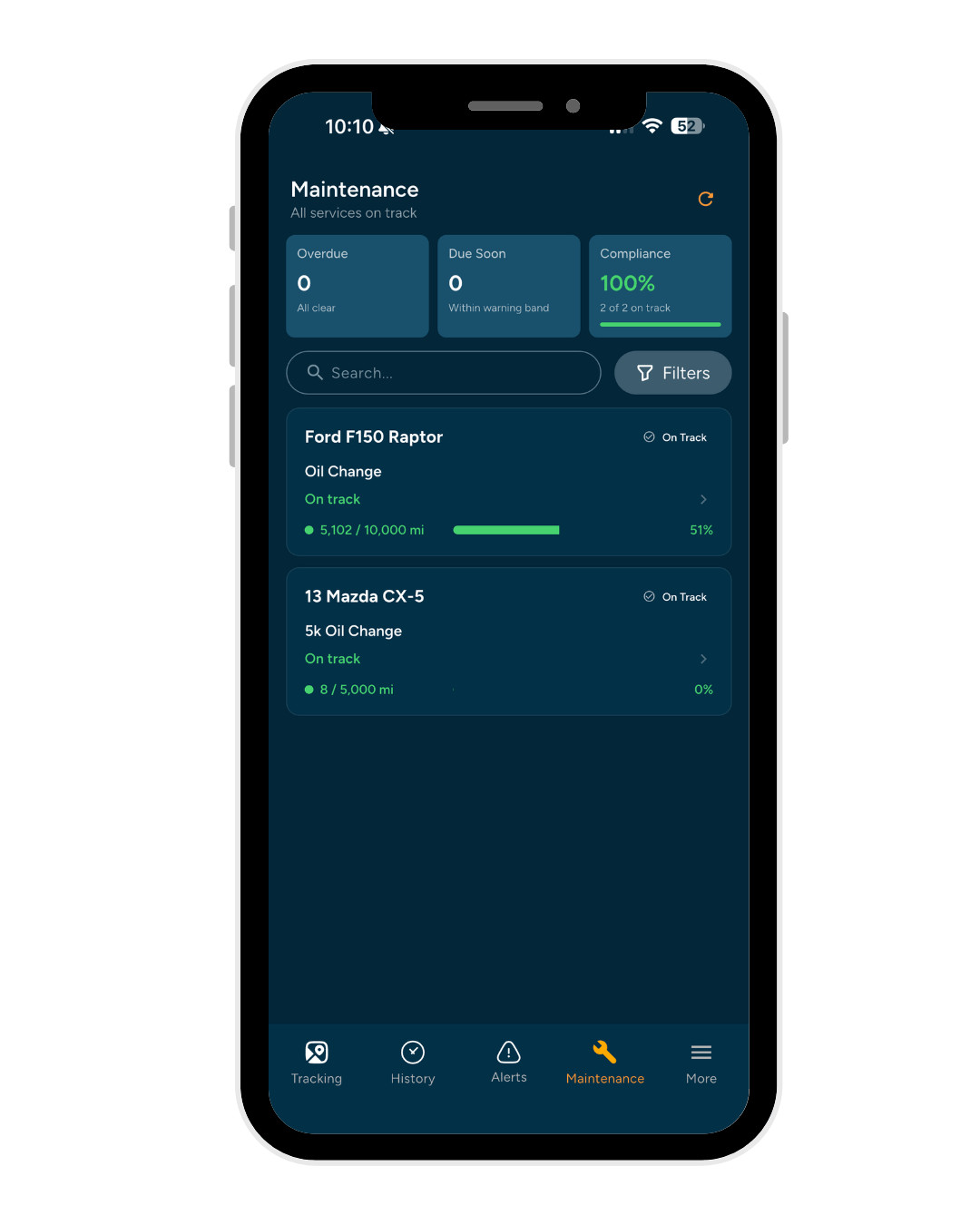
This is the same mobile service log that syncs back to web, so anyone checking the vehicle's maintenance history later sees the update; no separate step needed to keep both in sync.
Where to go if something doesn't look right
If a maintenance notification seems off, a schedule isn't updating the way you'd expect, or anything in this update doesn't match what you're seeing in your account, Trackhawk GPS maintenance support is the fastest way to get it sorted. Screenshots and the vehicle name or VIN help our team track down the issue quickly.
For anything else, The Trackhawk fleet app help is available the same way it always has been. We'd rather you flag something that turns out to be expected behavior than sit with a maintenance schedule that isn't tracking the way your fleet needs it to.